
HubSpot Integration Connection · Wiki · 10XERP
To integrate HubSpot with 10X ERP, you'll create a private app in HubSpot and configure API scopes to enable syncing between the two systems. This integration syncs 10X Customers to HubSpot Companies, 10X Customer Contacts to HubSpot Contacts (linked to their company), and published Quotes and Invoices to HubSpot Deals. Once the app is created and permissions are set, you'll generate and apply an access token to activate the connection.
- Log into HubSpot and switch to your Developer Account to begin setting up the integration.
-
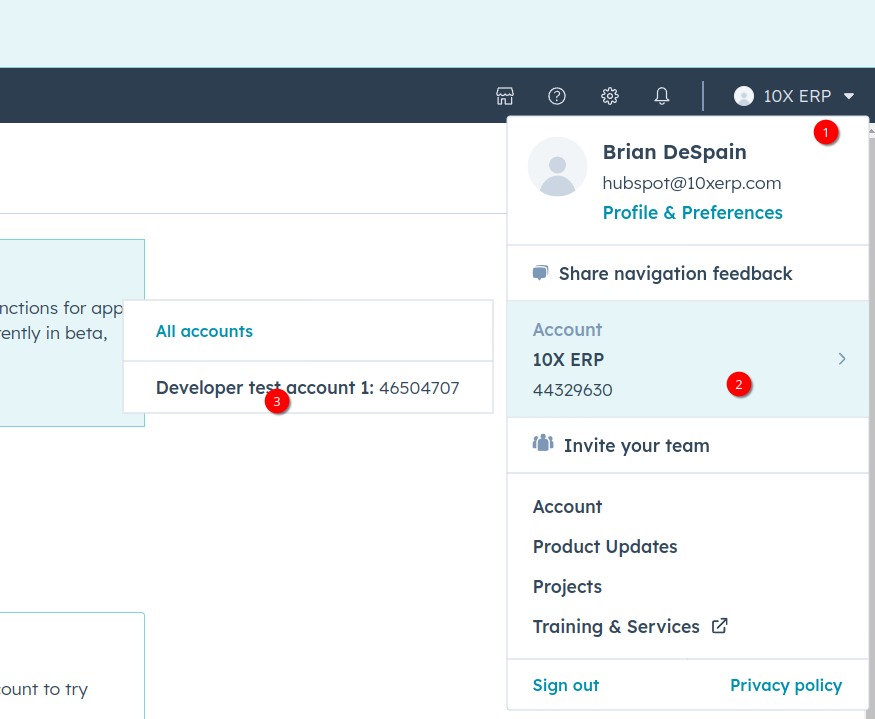
- Click the gear icon (Settings) in the top-right navigation bar to open the account settings.
- Navigate to Integrations > Private Apps from the left-hand menu to manage custom API apps.
-
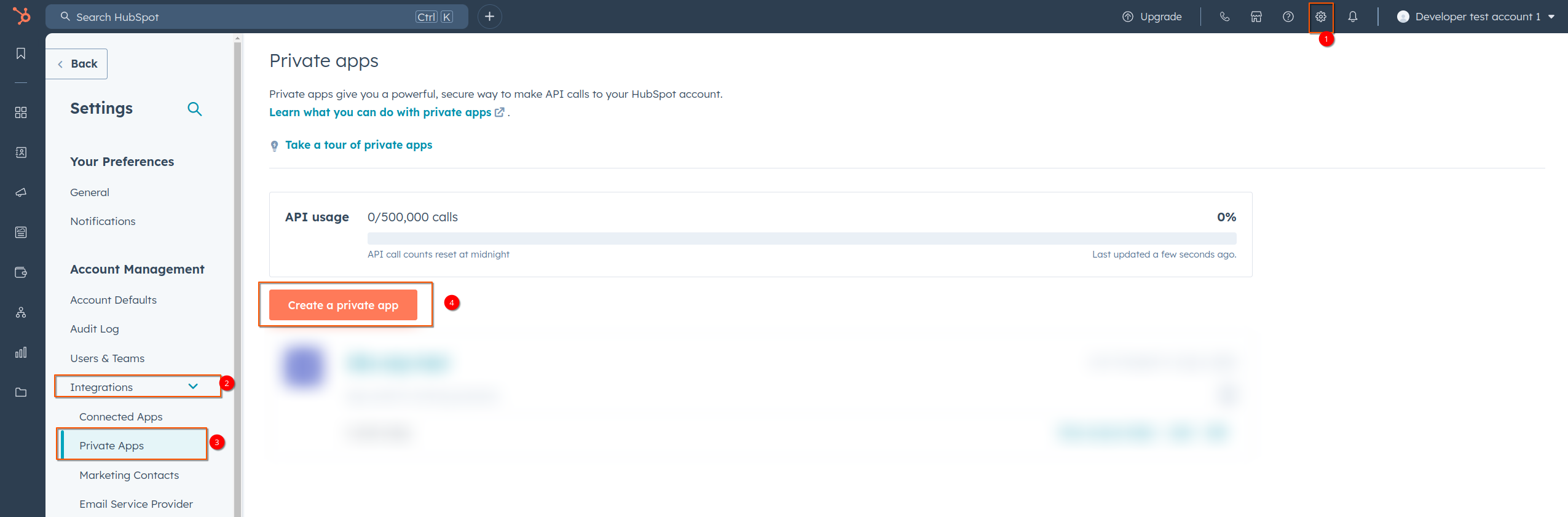
Click “Create a private app” and name your app appropriately for the 10X integration.
Enable the following read and write scopes under the CRM section to allow data syncing between 10X and HubSpot:
crm.lists,crm.objects.companies,crm.objects.companies.sensitivecrm.objects.contacts,crm.objects.contacts.sensitivecrm.objects.custom,crm.objects.custom.sensitivecrm.objects.deals,crm.objects.deals.sensitivecrm.schemas.companies,crm.schemas.contacts,crm.schemas.custom,crm.schemas.deals-
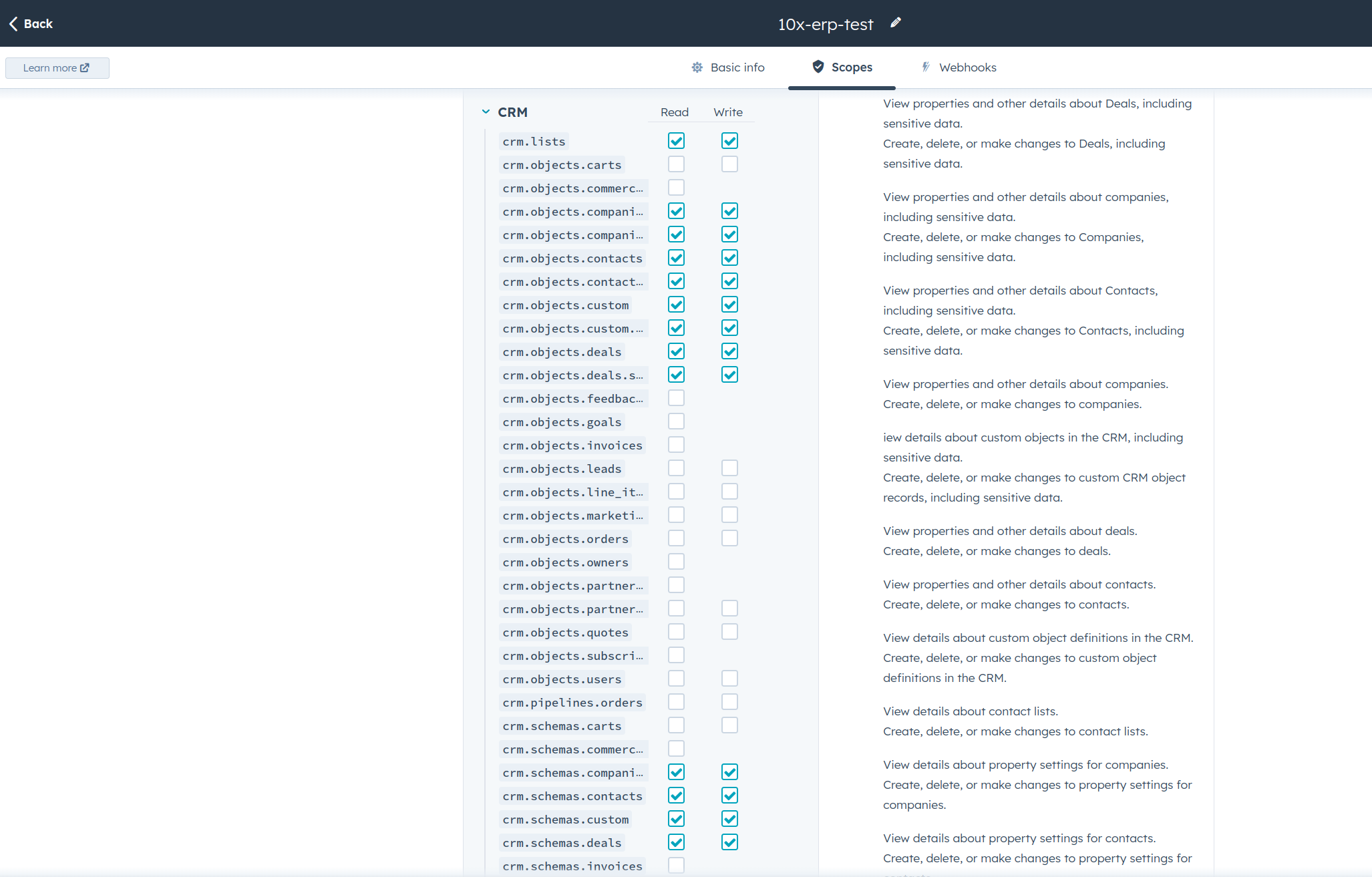
- Click “Create app” to generate the integration.
- View and copy the access token by clicking “View access token” and then the Copy button.
-
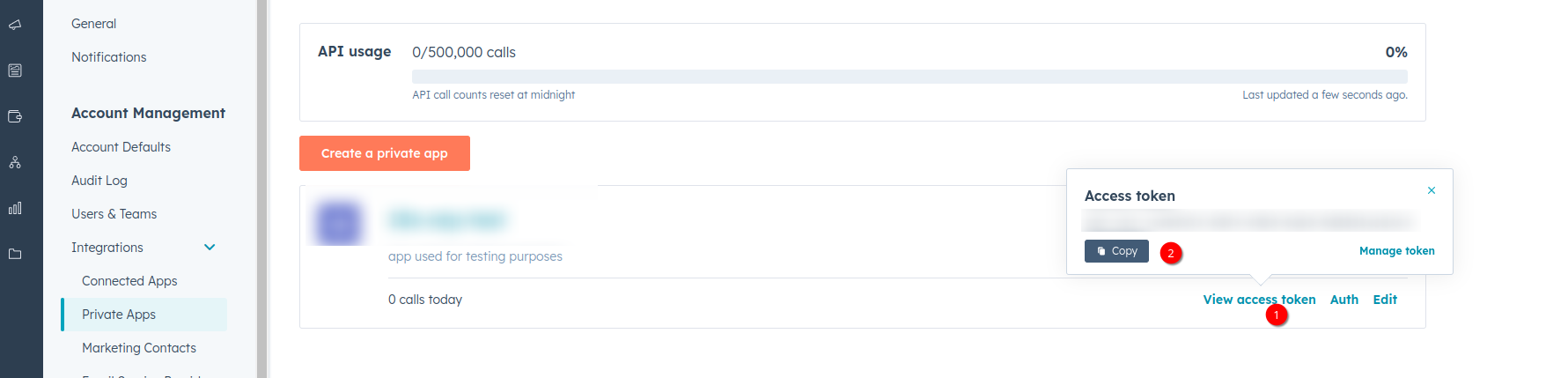
- Paste the token into your
.env.localfile under the keyHUBSPOT_ACCESS_TOKEN. - Re-deploy your application or run
composer symfony:dump-envto apply the new environment variable.
